What does the player actually do?
The player runs the content, manages the schedule, connects to the network and reports its status. The panel only displays what the player sends. A good panel with an underpowered player will stutter, fail to decode 4K, or drop offline without warning.
When comparing players, look at the CPU, RAM, storage, operating system version, network interfaces, video decode capability and management protocol. These determine whether the player can run your content for the next three years, not just on the demo day.
When is Android the right choice?
Android is the default for scheduled media, CMS-driven publishing, menu boards, wayfinding and built-in whiteboards. It boots quickly, is power-efficient and has a large ecosystem of signage CMS apps. Most retail, hospitality and corporate signage runs on Android.
Android is not suitable when the site needs desktop software, native Windows drivers, a specific video-conference client or complex local file workflows. In those cases, an Android box will force a software rewrite or a remote-desktop workaround that is harder to support.
- Scheduled playlists and remote CMS publishing.
- Menu boards, wayfinding, brand loops.
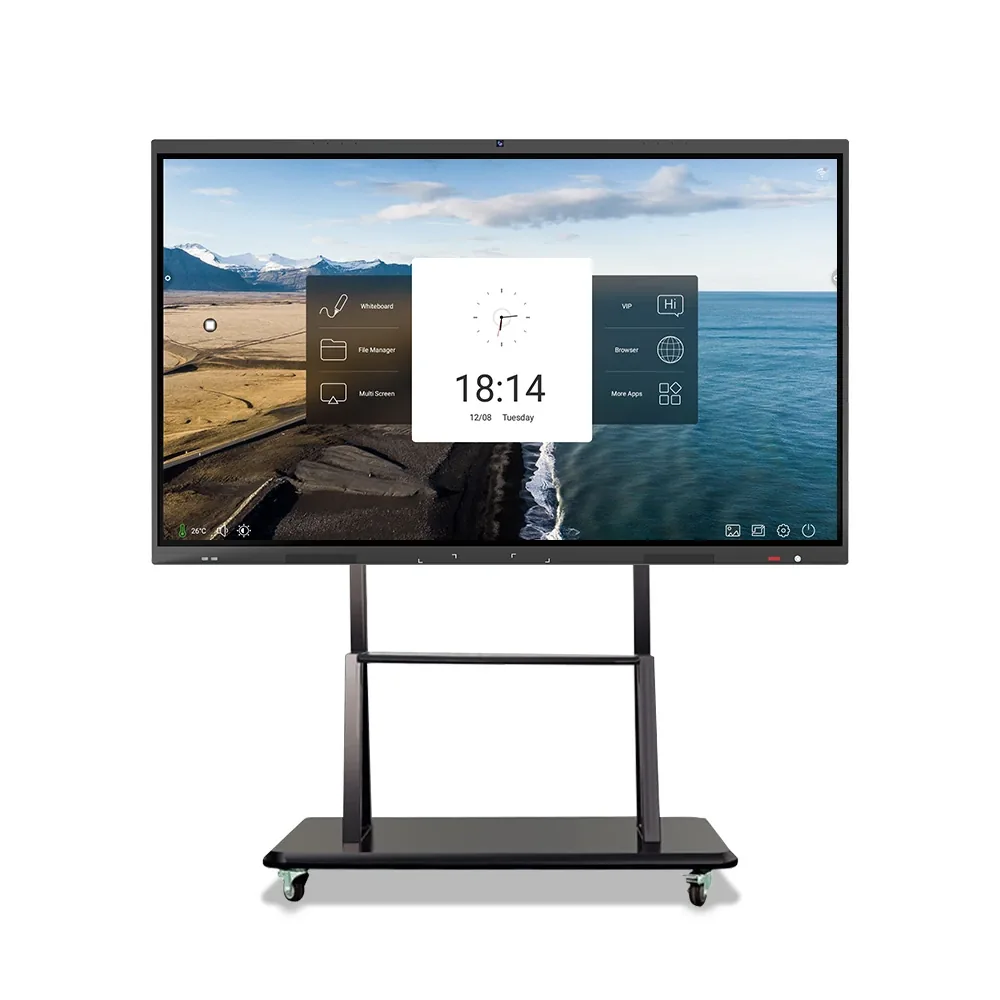
- Built-in whiteboard and wireless casting.
- Sites with limited IT support.
When do I need Windows?
Windows is required when the display runs a desktop application, a dashboard that depends on a Windows-only browser plug-in, a local database or a specific peripheral driver. Meeting rooms that use Windows collaboration software and control rooms with legacy applications are common examples.
Windows brings management overhead: operating system updates, antivirus, licence compliance and a larger attack surface. If the site does not have an IT owner, Android is usually the better long-term choice even if Windows is technically capable.
What is a dual-system panel, and do I need it?
A dual-system panel runs both Android and Windows, usually by switching inputs or modules. It is useful when the room needs an Android whiteboard for quick annotation and a Windows application for a specific task. The trade-off is cost, boot complexity and two systems to update.
Specify dual system only when both use cases are real. If 90% of the use is whiteboard and casting, a simpler Android panel with a connected laptop is easier to support than a dual-system panel that confuses users.
How do I compare player specifications?
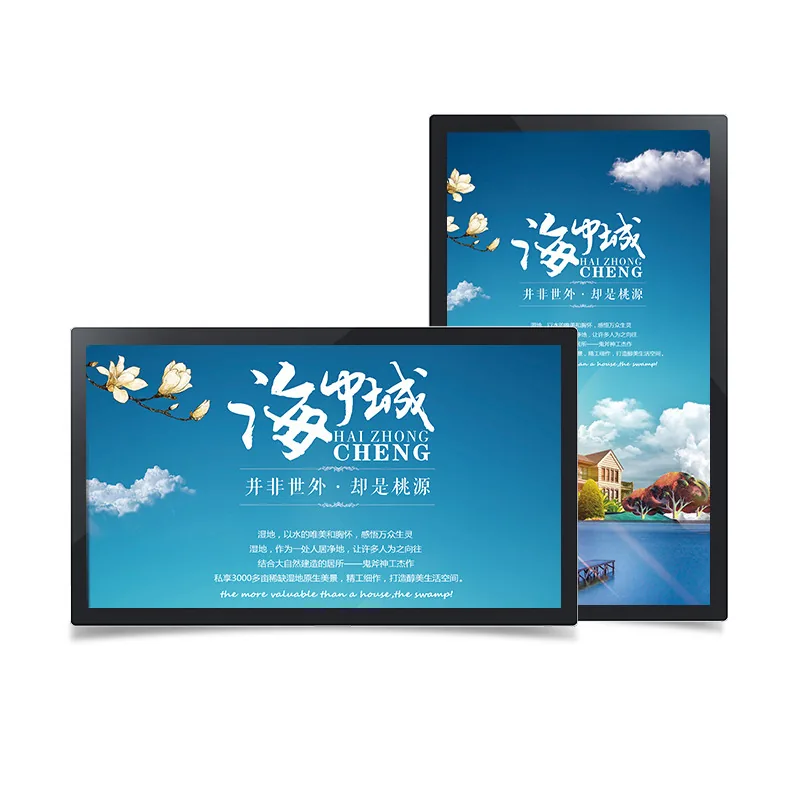
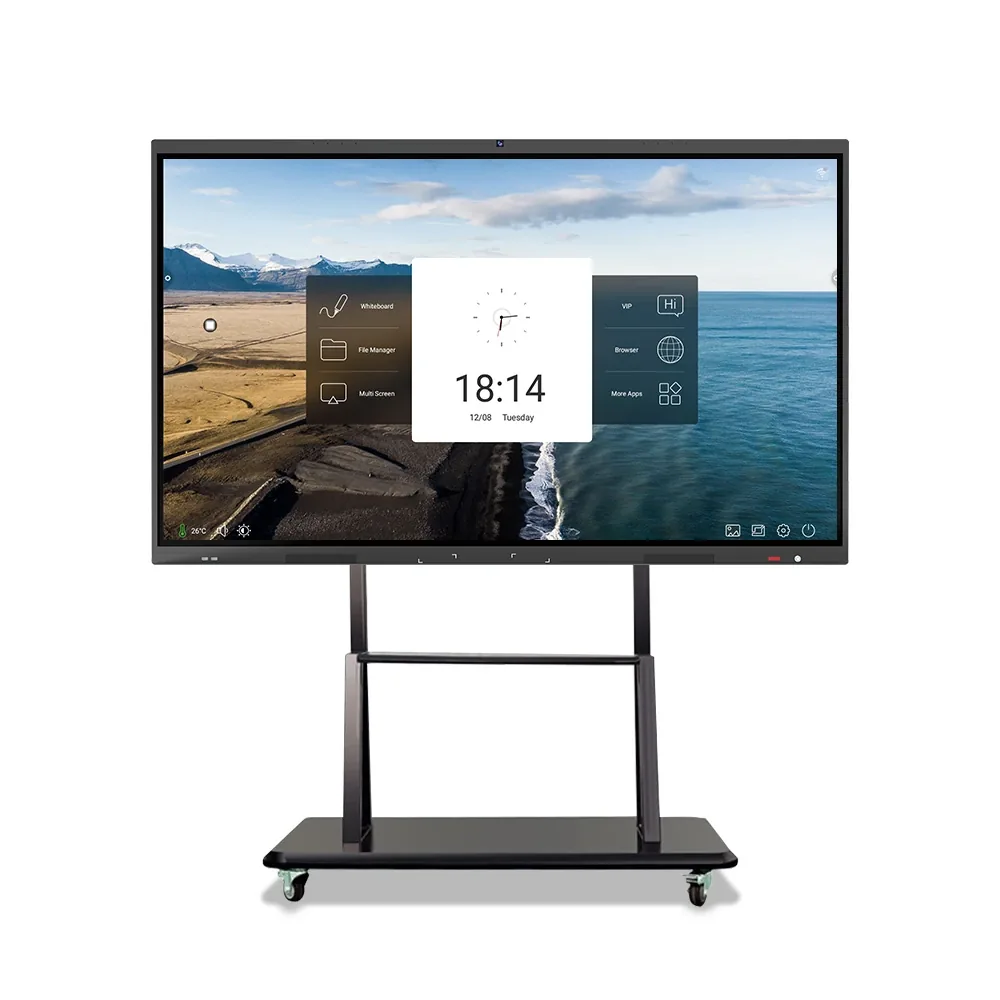
Compare the actual hardware, not the marketing label. The table uses values from the published datasheets for three models in our range: the SS-430WD wall display, the MG-AD550 wall display and the SS-215WD all-in-one.
| Item | SS-430WD | MG-AD550 | SS-215WD |
|---|---|---|---|
| CPU | RK3566 | A133 quad-core | RK3566 quad-core 1.9 GHz |
| RAM | 3 GB | 1 GB (options available) | 3 GB |
| Storage | 32 GB | 32 GB | 32 GB |
| OS | Android 11 | Android 10 | Android 11 |
| Network | Ethernet, Wi-Fi, 4G options | RJ45, Wi-Fi, 4G module option | Wi-Fi, RJ45, 4G option |
| Touch | Not listed as standard | USB touch support | 10-point PCAP |
What about standalone USB/SD players?
A standalone player plays a loop from a USB drive or SD card and does not need a network. It is the lowest-cost option and the simplest to deploy in a site with no IT support. It also has no remote monitoring, no scheduled campaign changes and no way to confirm that the screen is playing.
Use standalone only for small, stable, low-criticality installations. If the content changes monthly or the site is customer-facing, add a network player and a CMS.
How does the CMS affect the player choice?
The CMS is the software that schedules, publishes and monitors content. Some CMS platforms support only Android, some support Windows, and some support both through different players. Choose the CMS before the player if the content workflow is already defined.
Ask the CMS vendor for the supported player models and the minimum firmware version. A CMS that works on a demo box may not support the player in your quotation. Test the exact combination before the rollout.
What should I test before the rollout?
Test the actual content, the actual network and the actual player. A 4K video that plays on a laptop may stutter on a low-power Android box. A CMS that works on the office network may be blocked by the store firewall. A player that boots quickly in the lab may take longer after a power cut.
- Play the real 4K / portrait / split-screen content for 24 hours.
- Reboot after a power cut and confirm auto-resume.
- Disconnect the network and confirm local playback continues.
- Test the CMS publish, rollback and remote restart.
- Measure boot time and the time to first frame.