
Education deployment blueprint
Education campus: classrooms, training rooms and wayfinding
A campus blueprint with 20 standard classrooms, four training rooms and three wayfinding kiosks, plus a teacher onboarding and daily reset routine.
- 27
- screen units
- 3
- display models
- 4
- deployment stages
Deployment blueprints are representative configurations. Final bills of materials depend on a site survey, power availability and the content management platform you choose.
Project scope
What this blueprint covers.
- 20 standard classrooms with 75-inch interactive panels on fixed wall mounts.
- Four training rooms with 86-inch panels and movable brackets.
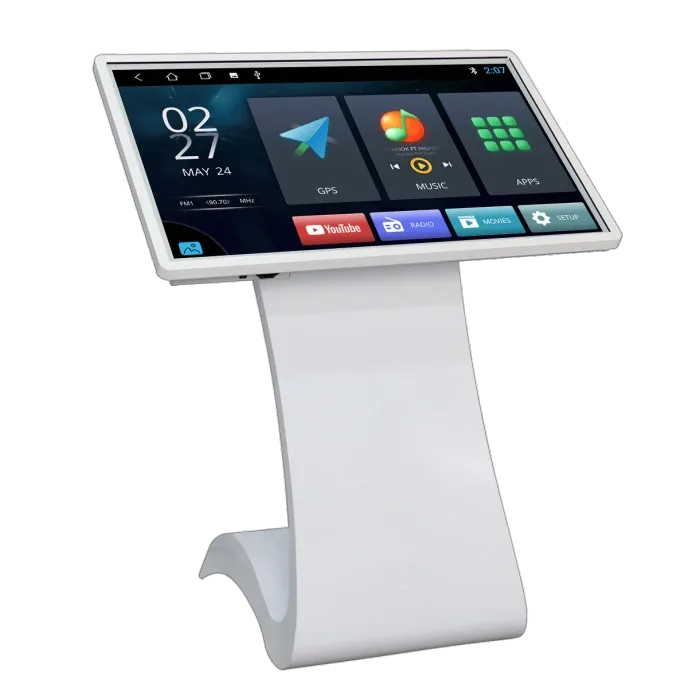
- Three 43-inch wayfinding kiosks at the main entrance and building junctions.
- A standard home screen, a daily reset and a named IT contact for each building.
Typical equipment mix
Typical equipment mix.
| Model | Quantity | Role in the deployment |
|---|---|---|
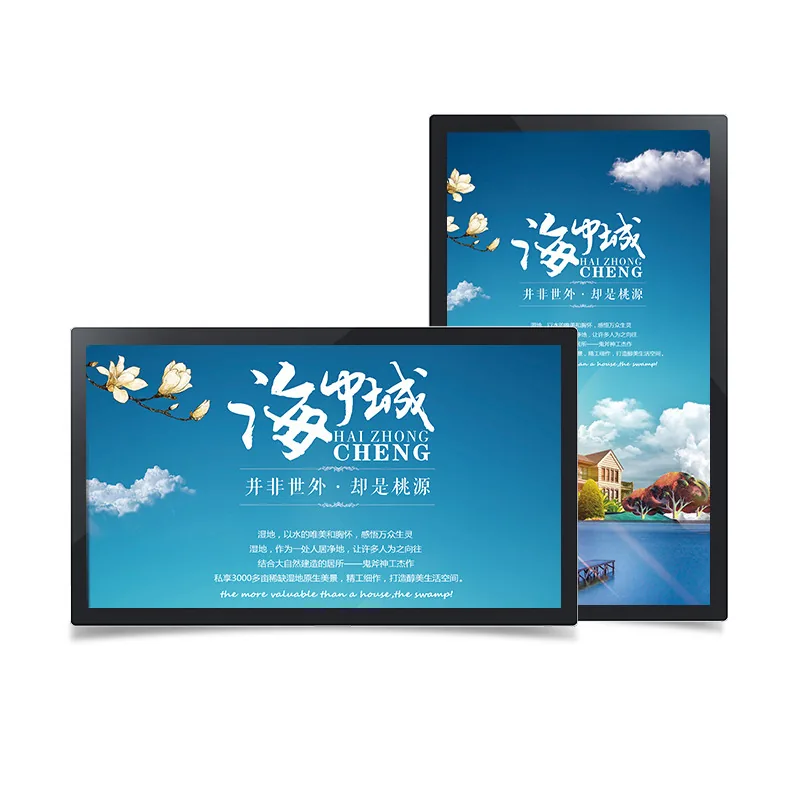
| SD-G750H | 20 | 75-inch classroom interactive panel |
| SD-G860H | 4 | 86-inch training-room panel |
| SD-G430T | 3 | 43-inch wayfinding kiosk |
| Android / Windows player | 24 | Classroom playback and local applications |
Content and operations workflow
How content and operations run.
- 01
IT images each panel with a standard home screen, network settings and a local admin account.
- 02
Teachers receive a short onboarding session on annotation, casting and the daily reset.
- 03
Wayfinding content is owned by campus communications and reviewed each term.
- 04
A monthly report lists panels with repeated faults, outdated software or failed resets.
Commissioning checklist
Checked item by item before handover.
- Confirm wall load, mounting height and power at every classroom.
- Test the panel with the teaching software and the campus network.
- Set a daily reset and document it for substitute teachers.
- Check that wayfinding maps match the direction the visitor faces.
- Record software licences and renewal dates.
Site references
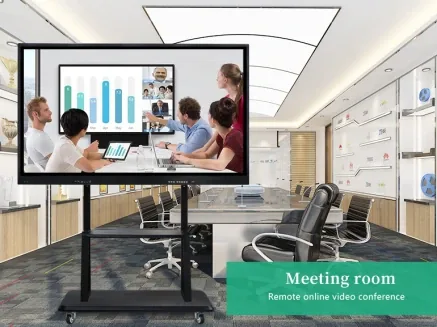
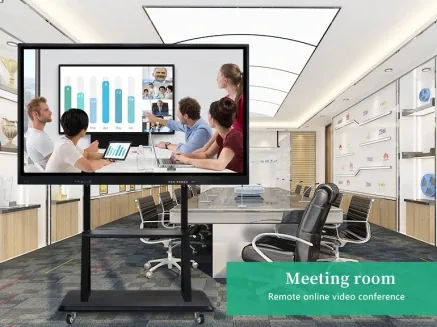
Typical views from this deployment type.
Displays used in this blueprint
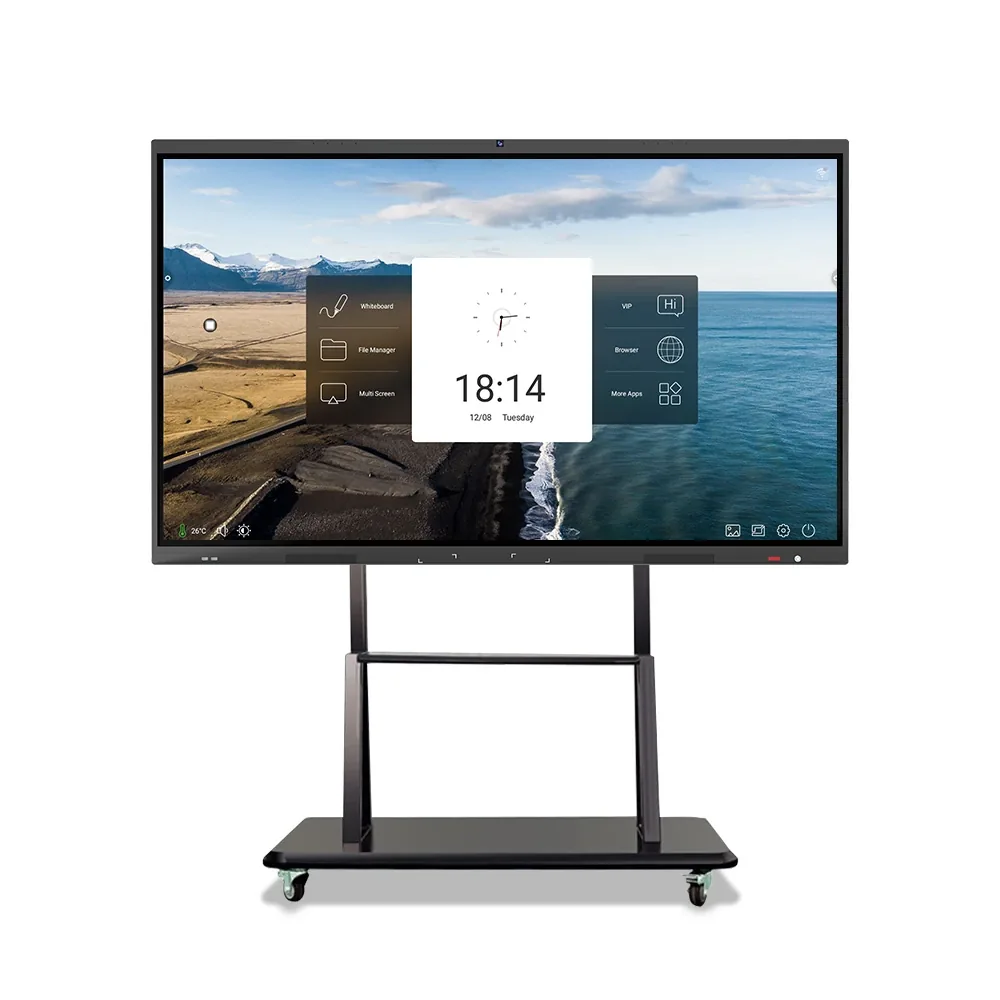
Display families used in this blueprint.
Frequently asked questions
Questions buyers ask before this type of rollout
How many panels can one IT team support?
It depends on standardisation, not only on the count. Use the same model, home screen, network profile and reset procedure in every room, and keep a spare panel for swap-outs. A standard fleet is easier to support than a mixed fleet of similar sizes.
Should classrooms use Android or Windows?
Use Android when the main needs are whiteboard, casting and browser content. Use Windows or dual system when the school runs desktop teaching software or subject-specific applications. Confirm licences, updates and the recovery image before the rollout.
How do we stop students from changing settings?
Use a local admin account, a locked home screen and a daily reset that clears annotations and returns to the standard launcher. Do not rely on a single shared password; document the reset procedure for staff. Physical access to the rear ports should be controlled where possible.
Can the wayfinding kiosks be updated by the campus team?
Yes, if the CMS has a simple editor and a clear template. The campus team updates room names and directions; the template controls layout and branding. Keep a backup of the map data and a printed fallback for the first weeks after a change.
Have a similar site?
Send photos, dimensions and power locations. We will map the display positions and propose a bill of materials.